


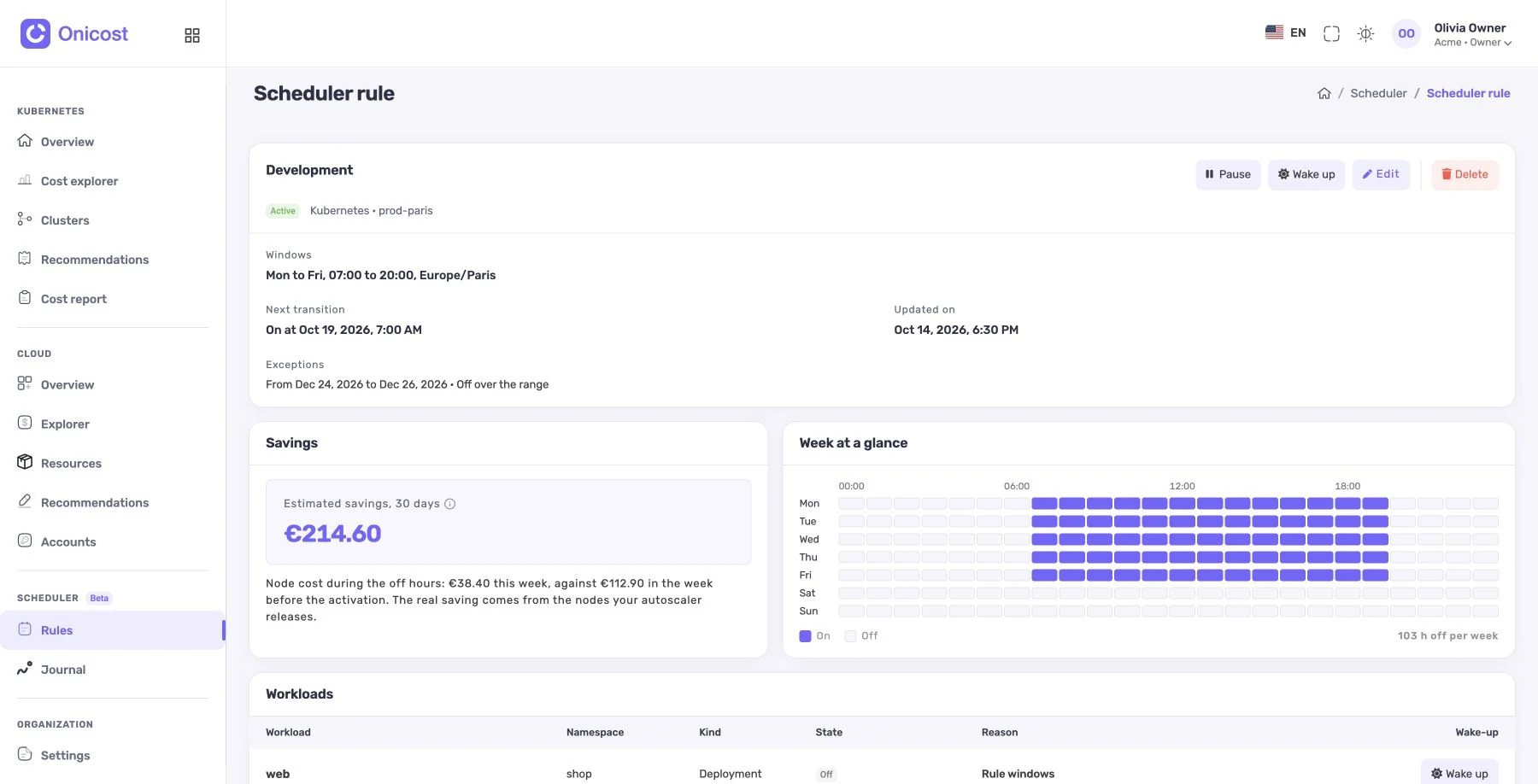
A working week that fits your team
Take a staging environment used Monday to Friday, from 8 am to 7 pm, in the Europe/Paris time zone. Set these as active windows: outside them, the rule schedules supported targets to stop, including at weekends. This is an illustrative schedule, not a guaranteed financial result.
Releasing on Thursday evening? Add an exception to keep the environment running. An unexpected test on Saturday? Request a temporary wake-up. The schedule resumes when it expires. Restarts can take time depending on the provider and resource: allow for application startup when choosing active windows.
See what would happen before authorizing actions
A new rule starts in simulation. Onicost shows selected resources, exclusions and their reasons, upcoming actions and estimated monthly potential where it can be calculated. Resources keep their current state during simulation.
Check the scope, active windows and time zone with the service owners. Then explicitly activate the rule. The journal records actions and outcomes, including permission refusals and provider errors.
Dedicated action permissions, separate from collection
Data collection uses read-only access by default. The Scheduler requires dedicated permissions, explicit activation and a journal. For Kubernetes, enable the agent’s actions mode with its own permissions. For cloud actions, configure a write identity separate from the credentials used to read costs and inventory.
Owners and administrators create, edit and activate rules. Members, including viewers, can request temporary wake-ups within the available limits, for up to 72 hours. A wake-up allows work outside active windows without permanently changing the working week.
Kubernetes: targeted workloads and their constraints
A Kubernetes rule uses namespaces and labels to select Deployments, StatefulSets and CronJobs. Excluded namespaces and resources marked to be ignored stay outside its scope. Check targets in simulation before covering an entire environment.
Autoscaling and GitOps controllers can affect the expected state. An HPA may enforce a minimum replica; Argo CD reconciliation can restore a workload. Review warnings and the journal, then test application dependencies, especially stateful components.
Stopping these workloads does not stop the nodes. Reducing billed cloud capacity may also require an appropriate action on a supported node pool. Volumes and some charges persist while workloads are stopped.
Cloud: check the service and resource type
Supporting a provider does not make all of its services stoppable. The Scheduler acts on supported inventory targets with the required permissions. Known Kubernetes nodes are managed through their pool, rather than as independent VMs.
- AWS: supported EC2 instances, managed EKS node groups, RDS instances and Aurora clusters. AWS can restart a database after seven stopped days; the Scheduler can stop it again if the calendar still calls for it to be off. RDS instances with read replicas, and instances that are read replicas, cannot be stopped; additional restrictions depend on the engine and deployment.
- Azure: supported VMs, AKS pools and flexible PostgreSQL/MySQL servers. An AKS system pool retains at least one node. Azure SQL is not among the stoppable databases.
- Google Cloud: supported Compute Engine instances, GKE pools and Cloud SQL instances. Service and autoscaling constraints still apply.
- Scaleway: supported Instances and Kapsule pools. The Scheduler does not stop Scaleway managed databases.
Read estimated potential separately from the bill
A scheduling estimate compares available cost data with planned stopped hours. It helps compare rules before activation. It does not guarantee a saving and does not replace your invoices. A missing estimate does not mean a resource is free.
Disks, IP addresses, storage, fixed charges and commitments can remain billable while compute is stopped. Stopped pods on a node that is still billed do not remove its cost. Review the relevant bill items and capacity actually removed.
After activation, compare observed costs alongside context: usage, prices and infrastructure may have changed at the same time. A before/after difference does not prove Onicost caused the whole change.
Team, 100 rules and a gradual rollout
Scheduler Beta is included in Team. Each organization can have 100 rules in total, counting rules in simulation and paused rules. Start with a noncritical environment and verify the stop/restart cycle before widening the scope.
Beta includes no specific discount or SLA and does not guarantee instant restarts or availability. Allow for provider delays and application dependencies. The Team trial lasts 14 days without a credit card, with its own caps: 50 clusters, 10 members, 5,000 cores and 5 cloud accounts.
Frequently asked questions
Does the Scheduler apply rightsizing recommendations?
No. Recommendations identify opportunities your team chooses and applies. The Scheduler executes stops and restarts defined by the rules you simulate and activate.
Can a viewer wake an environment up?
Yes. Members, including viewers, can request temporary wake-ups within the available limits. Owners and administrators manage rules. A wake-up lasts up to 72 hours.
Does stopping a resource remove all its costs?
No. Disks, IPs, storage charges and commitments can remain billable. Stopping pods does not necessarily remove nodes. Displayed potential is an estimate, not an achieved result.
Can I test a rule without stopping resources?
Yes. New rules are in simulation: check their scope and calendar before explicitly activating them.