


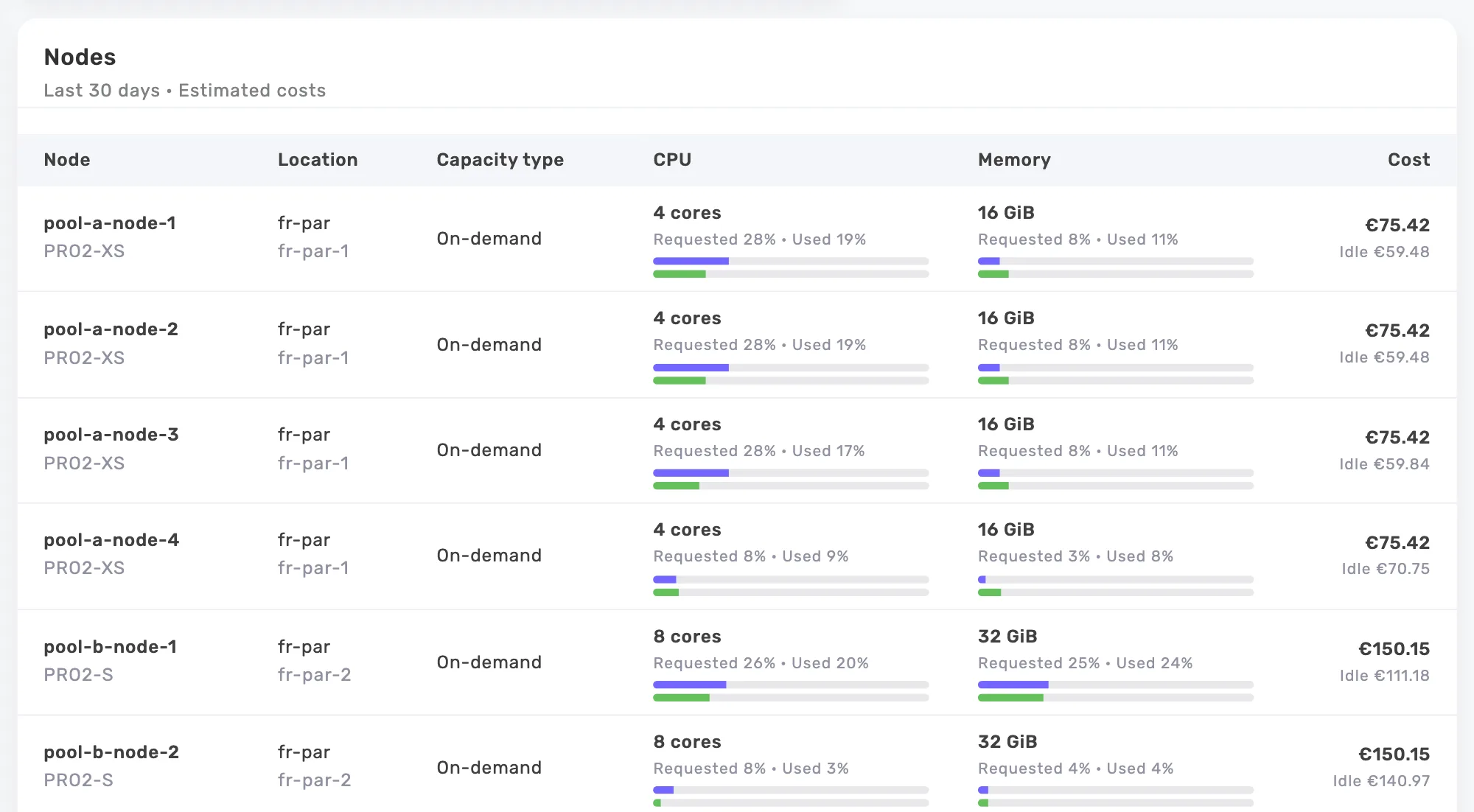
Read three different values separately
A request informs pod placement: the scheduler checks whether a node can accommodate the requested resources. A limit constrains container consumption. Usage measures actual consumption. These values answer different questions; read them separately to understand how your workload is sized.
An application can use more than its request when resources are available, subject to its limits. A high request may occupy unused scheduling capacity. A low request can leave the workload poorly sized when resources are contested.
CPU: separate requested capacity from useful throughput
Kubernetes expresses CPU in cores or milliCPU: 500m is half a core. A CPU limit can cause throttling when a container tries to exceed it. Review usage alongside application latency and throughput. A low average alone does not establish that the current limit leaves enough room for the work your service must perform.
Compare similar load periods and identify the tasks that cause spikes, such as startup, batch processing or traffic bursts. Choose a request that reflects observed needs and a limits policy consistent with your operations. One universal target will not suit an interactive API, a worker and a scheduled job equally well.
Memory: allow room for peaks
A memory limit can lead to an out-of-memory termination, which may appear as OOMKilled. Memory therefore behaves differently from a CPU throughput cap. Account for startup, caches and runtime behavior before lowering a limit, and check whether restarts have already been hiding a resource problem.
Use explicit units: Mi and Gi are binary units, unlike M and G. Review high usage values and restarts over a representative period. The largest value you have observed does not guarantee the size of the next spike. Keep headroom based on how your application works.
Observe a period that represents your business
Do not size a service using a few quiet minutes. Your observation window should include events that matter to that service: working days, scheduled processing, deployments or month-end activity. If a major event has not occurred, record that limitation in the decision instead of assuming the data already covers it.
In Onicost, compare usage, requests and node capacity to find gaps worth reviewing. Add your application metrics to the discussion. Cost shows where an investigation may be worthwhile; service knowledge determines how far you can safely change the configuration.
Change gradually and check autoscaling
When an HPA uses a CPU utilization target relative to requests, changing a request also changes the baseline for its calculation. Review autoscaling rules before deployment. Otherwise, a smaller request may shift spending to additional replicas or produce scaling behavior that differs from what you expected.
Apply a limited change through your deployment tools, then compare service quality under representative load. Prepare a way to return to the previous configuration. The workload owner should know which signals will decide whether the change stays in place or is rolled back.
- Check latency, errors, throttling and restarts.
- Review replica counts and pending pods.
- Confirm that important business peaks are still served well.
Connect rightsizing to savings you can realize
Lower requests may help you make better use of nodes you already pay for. To realize a billing reduction, you then need to reduce or resize purchased capacity. Availability and placement constraints can prevent that step even when the workload’s allocated cost falls.
Onicost provides read-only recommendations and monthly savings estimates where they can be quantified. Your team applies the actions. Track freed capacity, removed resources and observed spending separately so you can explain the outcome without presenting a potential saving as money already saved.
Frequently asked questions
Should requests and limits have the same value?
There is no rule that fits every application. Choose values based on workload behavior, isolation requirements and service objectives, then validate the result.
Does Onicost change Kubernetes manifests?
No. The agent collects data with read-only access. Recommendations help your team prepare changes that it applies through its own tools.