


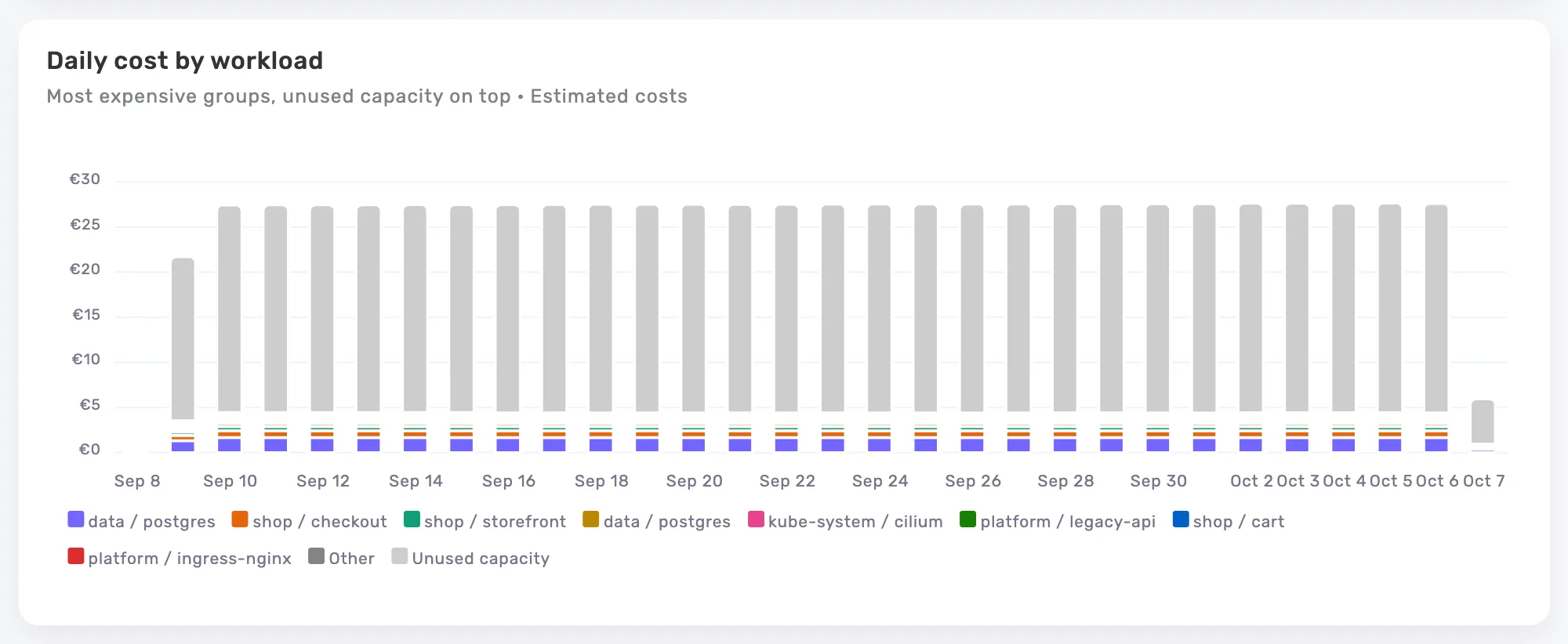
Find what consumes your cluster budget
Billed capacity can run your applications, support the system or remain unused. Onicost separates these categories and lets you explore costs by cluster, namespace, workload and label. You can see where to investigate before adding nodes or changing a deployment, and explain the capacity you already pay for.
Kubernetes costs are estimates based on available prices and your settings. Network traffic is excluded, and a missing price does not mean a resource is free. Cloud bills are analyzed separately. Keep that distinction clear when explaining a difference between workload allocation and invoiced spending to finance or leadership.
Connect spending to products and their owners
For a SaaS team, a cluster total rarely explains the next decision. Use product, team and environment namespaces or labels to find the relevant workloads. Agree on an allocation rule for shared services, and fix missing labels before comparing teams. A useful cost view starts with ownership everyone understands.
Choose a product whose costs have increased. Compare the change with deployments and business activity, then ask its owner whether the added capacity serves a real need. This turns a technical number into a product conversation, with someone who can evaluate the tradeoff and take responsibility for the next action.
Choose changes your team can actually deliver
Onicost highlights oversized requests, idle workloads, underused nodes and orphaned volumes. Review each opportunity alongside its metrics and estimated monthly savings where those savings can be quantified. Rank the work by impact, effort and operating constraints, then choose a manageable first change instead of treating the largest number as an automatic priority.
Reducing a request frees capacity. A bill comes down when billed resources can then be removed or resized. Recommendations may overlap and describe the same capacity, so adding them together can overstate the opportunity. Check the result after your change and keep service performance in the same review.
- Assign each action to a workload or platform owner.
- Keep headroom appropriate to traffic peaks and availability requirements.
- Compare costs and service quality after the change.
Observe your infrastructure while staying in control
Add a cluster in Onicost, retrieve its token and follow the Helm chart installation steps. The agent collects CPU and memory usage, requests, limits and the inventory needed for analysis. Its permissions are documented in the public chart. It has no access to Secrets or ConfigMaps.
The agent operates with read-only access. Onicost recommends actions and your team applies them through its existing tools. Kubernetes cost estimates support AWS, Azure, Google Cloud, OVHcloud and Scaleway. For on-premises nodes or another provider, you can supply your own prices per vCPU and GiB.
Build a FinOps routine your team can use
Start with a regular review of a few workloads, recording an action and an expected result for each. With Team, share CSV analyses and PDF cost reports to prepare a budget decision. The Kubernetes month-end projection helps you spot a trend while there is still time to investigate it.
Free supports one cluster, up to 32 billable cores, two members and 31 days of history. The 14-day Team trial needs no credit card. It starts when the agent sends its first data, no later than 30 days after your organization is created.
Frequently asked questions
Does Onicost reduce my Kubernetes resources automatically?
No. Onicost analyzes metrics and presents recommendations. Your team chooses and applies changes, and can dismiss or reopen a recommendation.
Will lowering requests guarantee a smaller bill?
No. It frees capacity, but savings depend on the billed resources you remove, your rates and cluster constraints. Displayed savings are estimates.
Can I start with a single cluster?
Yes. Free includes one cluster and 32 billable cores. You can also try Team to explore its additional features before choosing a plan.